
Excel has long been the go-to tool for data analysis and reporting. However, as businesses grow and datasets become more complex, Excel often falls short in performance, visualization, and real-time collaboration. That’s where Power BI steps in.
Power BI offers advanced data visualization, robust analytics, and seamless integration with various data sources—making it a superior choice for modern business intelligence. In this guide, we’ll walk you through the step-by-step process of migrating from Excel to Power BI, and explain how experts like Jordan Turner Data can streamline your transition through Power BI reporting services, custom Power BI dashboards, and the help of a seasoned Power BI dashboard freelancer.
Why Migrate from Excel to Power BI?
Before diving into the how, let’s cover the why. Power BI offers a host of advantages over Excel:
- Real-time data updates
- Interactive visualizations
- Advanced data modeling
- Secure cloud-based sharing
- Scalable analytics across teams
While Excel remains useful for certain tasks, migrating to Power BI can transform how your team interacts with data.
Step 1: Define Your Objectives
Start by identifying what you want to achieve with Power BI. Are you aiming for faster reporting? More dynamic dashboards? Cross-departmental insights? Having a clear goal will help guide the structure of your reports and dashboards.
If you’re unsure where to start, consulting with a Power BI dashboard freelancer can help define a roadmap aligned with your business needs.
Step 2: Audit and Organize Your Excel Data
Go through your existing Excel files:
- Remove outdated or duplicated data
- Normalize inconsistent formats
- Separate raw data from pivot tables and charts
Clean and organized Excel files make it easier to import and visualize data in Power BI.
Step 3: Import Your Data into Power BI
Power BI supports direct import of Excel files (.xlsx, .xls) and can even connect to live Excel workbooks stored in OneDrive or SharePoint.
You can use:
- Power BI Desktop for report creation
- Power BI Service for sharing and collaboration
At this stage, Power BI reporting services from professionals like Jordan Turner Data can ensure your data model is structured correctly and optimized for performance.
Step 4: Build Visualizations
With your data imported, it’s time to build visuals:
- Use charts, gauges, and cards to represent KPIs
- Apply filters and slicers for interactive exploration
- Use Power BI’s Q&A feature to ask natural language questions
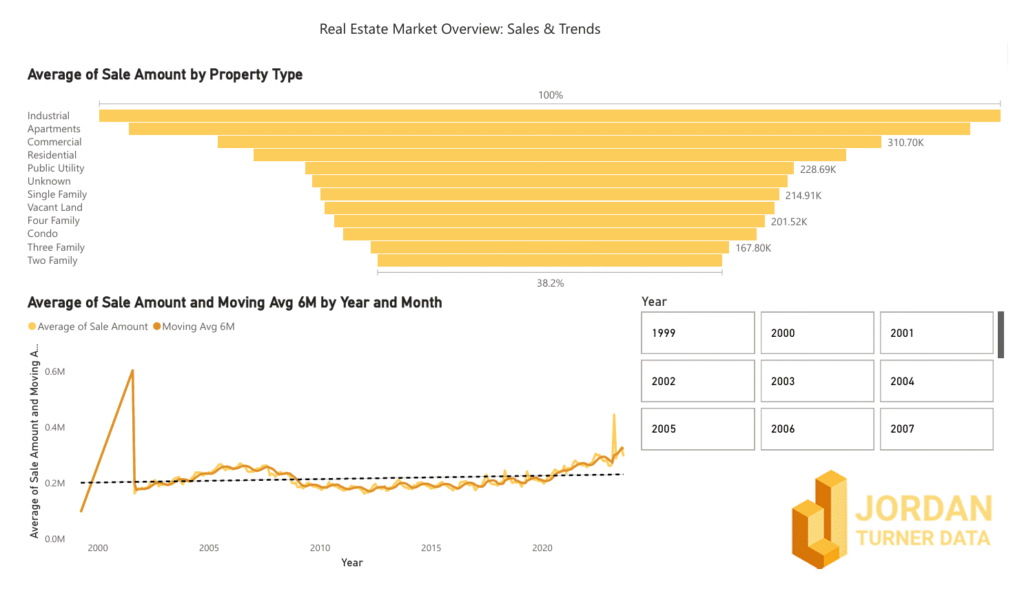
For tailored results, opt for custom Power BI dashboards that reflect your industry-specific needs. Jordan Turner Data specializes in creating these dashboards with precision, functionality, and visual clarity.
Step 5: Set Up Data Refresh and Sharing
Power BI allows scheduled data refreshes so your reports are always up-to-date. You can publish your dashboards to:
- Power BI Service for browser-based access
- Microsoft Teams for collaborative review
- Mobile apps for access on the go
Power BI reporting services ensure your refresh cycles, security protocols, and user access levels are correctly configured.
Step 6: Train Your Team
The transition from Excel to Power BI requires some upskilling. Invest time in basic Power BI training so your team can:
- Navigate dashboards
- Use filters and slicers
- Export data if needed
Jordan Turner Data also offers training support as part of their Power BI reporting services, ensuring your team is confident and competent with the new system.
Step 7: Optimize and Iterate
Once your dashboards are live, monitor their performance and usage:
- Are users finding the right insights?
- Are dashboards loading quickly?
- Are reports driving better decisions?
Continuous feedback is key. A Power BI dashboard freelancer can work on refining and optimizing the dashboards as your business evolves.
The Role of Experts in Power BI Migration
While Power BI is user-friendly, the migration process—especially for large datasets or complex calculations—can be overwhelming. This is where the expertise of Jordan Turner Data comes in. They offer:
- Custom Power BI dashboards tailored to your KPIs
- Hands-on Power BI reporting services for seamless migration and maintenance
- Access to a trusted Power BI dashboard freelancer for ongoing support and development
Whether you’re in retail, finance, healthcare, or any data-intensive industry, their experience ensures your transition from Excel to Power BI is smooth, efficient, and impactful.
Final Thoughts
Migrating from Excel to Power BI is not just a technical upgrade—it’s a strategic shift toward better business intelligence. With the right guidance, tools, and support, your organization can unlock the full potential of data-driven decision-making.
Ready to make the switch? Partner with Jordan Turner Data for expert-led Power BI dashboard development, interactive dashboards, and a seamless migration journey.